
Slightly Older Musings Ramblings
estilo grade para blog com o nome su a imagen oooooo
- - Peregrina Solitária
Today I am sharing a great and the most popular trick to show grid style posts in blogger blog. This is the must thing in you are blogging on niches like Images or Templates. It looks professional when you show out grid styling in your blog. It makes your visitors to show more of your posts and it also increase your pageviews because the visitors has to click the post to fully read it. Also you can edit the code accross your needs. To show this you must have an image in your blog post. So If you are interested to show grid posting to your blogger blog then follow the steps below.
Features:
1.) All Post Becomes Grid Styled.2.) Post Is Untouched While Editing.
3.) Length Of The Post (On Home, Labels And Archive Pages) Can Be Changed, But It Affects All The Posts.
4.) Auto Read More Will Applied On All Posts, No Exception.
5.) The First Picture In Each Post Will Be Automatically Used As A Thumbnail (On Home, Labels And Archive Pages). You Can Also Choose Not To Show Thumbnail.
5.) Only Loads The Snippet (On Home, Labels And Archive Pages).
6.) It's Will Make Professional Looking Blog.
7.) Visitors Have To Click Read More To View The Full Post That Will Increases Your Page Views.
8.) Will Decrease Your Page (On Home, Labels And Archive Pages) Loading Time.
9.) Perfect For Better SEO.
10.) You Don't Have To Add -The Jump Break- In Every Post.
11.) It Will Effect All Of Your Post In Your Blog (New To Old).
12.) 99% Of Blogger Are Using This Code.
13.) Uses HTML-Javascript Code.
14.) Quick To Load And Easy To Install.
15.) No Any External File Added.
16.) No Copyright Code POPUP Or Redirect.
17.) Will Show Image First Then Post Title And Then The Rest.
18.) Code Is Secured.
19.) You Have To Change Come CSS In The Below Code To Match It With Your Template.
How To Add In Your Blog:
1.) Go To Your www.blogger.com2.) Open Your Desire Blog.
3.) Go To "Template".
4.) Click "Edit HTML".
5.) Click "CTRL+F" Inside The Template BoxTo Find </head> Code.
6.) Now Copy The Below Code And Paste It Before The Above Code.
<!-- Auto Auto Image Thumbnail & ReadMore Link By MyBloggerBuzz Start -->
<b:if cond='data:blog.pageType != "item"'>
<b:if cond='data:blog.pageType != "static_page"'>
<style type='text/css'>
.date-outer .post-outer{width:46%;float:left;margin:20px 0px 0px 20px;height:490px;}
.date-outer .post-outer .post-body {font-family:Helvetica, Arial;font-size:13px;height:432px;}
.date-outer .post-header {margin:0px;}
.date-outer .post-outer h2.mbb_post_TITLE {margin:0px;font-size:24px;font-family:fantasy;font-weight:normal;}
.date-outer .post-outer h2.mbb_post_TITLE a:hover{text-decoration:underline;}
.date-outer .post-outer img.mbb_post_IMG {width:240px;height:240px;margin-bottom:4px;}
.date-outer .post-outer .mbb_post_Desc {font-size: 12px;padding: 10px;display: block;}
.date-outer .post-outer .post-footer {text-align:left;display:block;padding:10px;font-size:11px;}
#mbb_readmore {background:#424242;color:#fff;padding:5px;text-decoration:none;margin-top:4px;display:block;width:90px;float:right;}
.post-title, .post-author, .post-timestamp, .post-icons, .post-labels, .post-location, .author-profile, .date-header, .jump-link {display:none;}
</style>
<script type='text/javascript'>
//<![CDATA[
var noImgSum = 800;
var imgSum =180;
var _0xa07b=["\x3C","\x69\x6E\x64\x65\x78\x4F\x66","\x73\x70\x6C\x69\x74","\x6C\x65\x6E\x67\x74\x68","\x3E","\x73\x75\x62\x73\x74\x72\x69\x6E\x67","","\x6A\x6F\x69\x6E","\x63\x68\x61\x72\x41\x74","\x20","\x2E\x2E\x2E","\x67\x65\x74\x45\x6C\x65\x6D\x65\x6E\x74\x42\x79\x49\x64","\x69\x6D\x67","\x67\x65\x74\x45\x6C\x65\x6D\x65\x6E\x74\x73\x42\x79\x54\x61\x67\x4E\x61\x6D\x65","\x3C\x64\x69\x76\x20\x63\x6C\x61\x73\x73\x3D\x22\x65\x78\x65\x5F\x70\x6F\x73\x74\x5F\x44\x49\x56\x22\x3E\x3C\x69\x6D\x67\x20\x63\x6C\x61\x73\x73\x3D\x22\x65\x78\x65\x5F\x70\x6F\x73\x74\x5F\x49\x4D\x47\x22\x20\x73\x72\x63\x3D\x22","\x73\x72\x63","\x22\x20\x2F\x3E","\x3C\x68\x32\x20\x63\x6C\x61\x73\x73\x3D\x22\x65\x78\x65\x5F\x70\x6F\x73\x74\x5F\x54\x49\x54\x4C\x45\x22\x3E\x3C\x61\x20\x68\x72\x65\x66\x3D\x22","\x22\x3E","\x3C\x2F\x61\x3E\x3C\x2F\x68\x32\x3E\x3C\x73\x70\x61\x6E\x20\x63\x6C\x61\x73\x73\x3D\x22\x65\x78\x65\x5F\x70\x6F\x73\x74\x5F\x44\x65\x73\x63\x22\x3E","\x69\x6E\x6E\x65\x72\x48\x54\x4D\x4C","\x3C\x2F\x73\x70\x61\x6E\x3E\x3C\x2F\x64\x69\x76\x3E"];function removeHtmlTag(_0xe2dax2,_0xe2dax3){if(_0xe2dax2[_0xa07b[1]](_0xa07b[0])!=-1){var _0xe2dax4=_0xe2dax2[_0xa07b[2]](_0xa07b[0]);for(var _0xe2dax5=0;_0xe2dax5<_0xe2dax4[_0xa07b[3]];_0xe2dax5++){if(_0xe2dax4[_0xe2dax5][_0xa07b[1]](_0xa07b[4])!=-1){_0xe2dax4[_0xe2dax5]=_0xe2dax4[_0xe2dax5][_0xa07b[5]](_0xe2dax4[_0xe2dax5][_0xa07b[1]](_0xa07b[4])+1,_0xe2dax4[_0xe2dax5][_0xa07b[3]]);} ;} ;_0xe2dax2=_0xe2dax4[_0xa07b[7]](_0xa07b[6]);} ;_0xe2dax3=(_0xe2dax3<_0xe2dax2[_0xa07b[3]]-1)?_0xe2dax3:_0xe2dax2[_0xa07b[3]]-2;while(_0xe2dax2[_0xa07b[8]](_0xe2dax3-1)!=_0xa07b[9]&&_0xe2dax2[_0xa07b[1]](_0xa07b[9],_0xe2dax3)!=-1){_0xe2dax3++;} ;_0xe2dax2=_0xe2dax2[_0xa07b[5]](0,_0xe2dax3-1);return _0xe2dax2+_0xa07b[10];} ;function MBBautoReadMore(_0xe2dax7,_0xe2dax8,_0xe2dax9){var _0xe2daxa=document[_0xa07b[11]](_0xe2dax7);var _0xe2daxb=_0xa07b[6];var _0xe2daxc=_0xe2daxa[_0xa07b[13]](_0xa07b[12]);var _0xe2daxd=noImgSum;if(_0xe2daxc[_0xa07b[3]]>=1){_0xe2daxb=_0xa07b[14]+_0xe2daxc[0][_0xa07b[15]]+_0xa07b[16];_0xe2daxd=imgSum;} ;var _0xe2daxe=_0xe2daxb+_0xa07b[17]+_0xe2dax9+_0xa07b[18]+_0xe2dax8+_0xa07b[19]+removeHtmlTag(_0xe2daxa[_0xa07b[20]],_0xe2daxd)+_0xa07b[21];_0xe2daxa[_0xa07b[20]]=_0xe2daxe;} ;
//]]>
</script>
</b:if>
</b:if>
<!-- Auto Auto Image Thumbnail & ReadMore Link By MyBloggerBuzz Script End -->
7.) After That, Find This Below Code Using "CTRL+F.
<data:post.body/>
8.) You Will Find Three Of Them, Replace The Third One With The Following Code.
<!-- Auto Auto Image Thumbnail & ReadMore Link By MyBloggerBuzz Script Start -->
<b:if cond='data:blog.pageType == "item"'>
<data:post.body/>
<b:else/>
<b:if cond='data:blog.pageType == "static_page"'>
<data:post.body/>
<b:else/>
<div expr:id='"summary" + data:post.id'><data:post.body/></div>
<script type='text/javascript'> MBBautoReadMore("summary<data:post.id/>", "<data:post.title/>", "<data:post.url/>" );
</script>
<a expr:href='data:post.url' id='mbb_readmore'>Read More...</a>
</b:if>
</b:if>
<!-- Auto Auto Image Thumbnail & ReadMore Link By MyBloggerBuzz Script End -->
9.) Click Preview. If It Works, Then Click Save.
Customization:
1.) Change The CSS According To Your Desired.2.) If Your Post Have No Images Then The Words On Main Pages (On Home, Labels And Archive Pages) Are 800 You Can Change It With Your Desire.
3.) If Your Post Have Images Then The Words On Main Pages (On Home, Labels And Archive Pages) Are 180 You Can Change It With Your Desire.
4.) Height Of Thumbnail Of Your Image On The Page (On Home, Labels And Archive Pages) Is 240 You Can Change It With Your Desire.(It Is Calculated In Pixels)
5.) Width Of Thumbnail Of Your Image On The Page (On Home, Labels And Archive Pages) Is 240 You Can Change It With Your Desire.(It Is Calculated In Pixels)
6.) You Can Change The Words “Read More...” With Your Desire, If You Want To Show An Image Instead Of Text Then Change It With
<img src="https://blogger.googleusercontent.com/img/b/R29vZ2xl/AVvXsEh93fSs2_jDs0NBToKlxYfmerkhjhZgDHNvhvycgGq7SPDXH2kRE5m5JrLlXcxlsWtJUqBo3FICblv1mmcb3gNJ8bVyIR8tiesAMdR3vfhyphenhyphenb2R5eYEI-Rvoe0PUToMnG2ImZzk-r6eQ_w/s1600/Read-More-Button.png" style="float: right; margin: 0 10px 0 5px;" title="Read The Full Awesome Article" alt="Read More" />
Next/Prev/Home Buttons Bugs Fixed:
If You Have A Custom Template Or Blogger Official Template, There May Be A Bug After Adding The Above Code That Will Hide Your Next/Prev/Home Buttons Which Are At The Near Of End Of Blog And Move Them Anywhere Else. If You Are Watching This Bug Then Don't Feel Horriable Because Here IS The Fix For You.1.) Go To Your www.blogger.com
2.) Open Your Desire Blog.
3.) Go To "Template".
4.) Click "Edit HTML".
5.) Click "CTRL+F" Inside The Template Box To Find <b:includable id='nextprev'> Code.
6.) Now Copy The Below Code And Paste It Just After The Above Code.
<div style='clear:both;'/>
Final Words:
Congrats, you have successfully added Grid Posting to your Blogger Blogspot blog. I hope you added this successfully, if you face any difficulty then leave a comment below till then Peace, Blessings and Happy Griding.http://www.mybloggerbuzz.com/2014/02/grid-style-posts-blogger-blogspot.html
modelo de postagem grade
- - Peregrina Solitária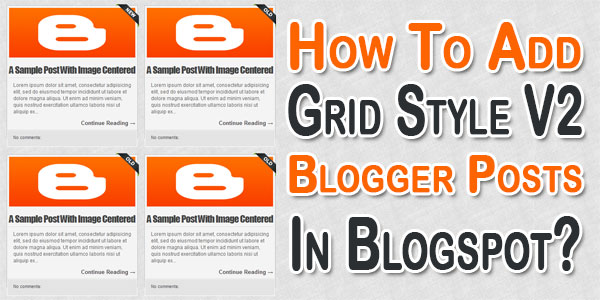
In the series of our previous post of styling up blogger post automatically in Grid Style Blogger Posts V1 as top bloggers are doing, Here we are with our second code in which your all blog post will be in Grid Style on archive, home, label and search page and will have different pattern as before that looks great and attract visitors and also can show maximum post on the same size of page also.
In this code we just convert your all post in a grid style with also a thumbnail image align to top, then post title and automatically a read more link after some words. This code will only work on archive, labels, search and homepage and will show the full post on your main post page or static page as official by blogger. You didn’t have to do anything like aligning the image at left or adding a read more after some words in every post, It will automatically do it himself and will show you the new awesome style of your posts.
In this code we just convert your all post in a grid style with also a thumbnail image align to top, then post title and automatically a read more link after some words. This code will only work on archive, labels, search and homepage and will show the full post on your main post page or static page as official by blogger. You didn’t have to do anything like aligning the image at left or adding a read more after some words in every post, It will automatically do it himself and will show you the new awesome style of your posts.
Some people looking for this code after seeing this on many blogs templates but he didn’t find this because blogger templates provider create a template with this code and force people to use their template. But now peoples are free to use the code with their own desire template. Expandable post or popularly known as “Read More” is a feature that make your blog shows only a part of your posts on index pages i.e. Home, Labels and Archive pages. We also fixed the biggest bug ever in this code that will effect Next/Prev/Home Buttons so don’t worry about anything.
At the end of each preview there will be a link to the post page, usually attached to the phrase “Read More”. We will describe that “How To Add Auto First Image Thumbnail & ReadMore Link After Given Length In Blogspot Posts By Adding Awesome JavaScript Code Easily?”
If you are looking for this codes and even didn’t get or it seems to be very hard to add it but here we have both solution that will help them too. So without any more description, just move forward to the code to get spice up your blog through seeing the features list and also the DEMO screenshoot which have some extra style codes is available at top.
Features:
1.) All Post Becomes Grid Styled.
2.) Post Is Untouched While Editing.
3.) Length Of The Post (On Home, Labels And Archive Pages) Can Be Changed, But It Affects All The Posts.
4.) Auto Read More Will Applied On All Posts, No Exception.
5.) The First Picture In Each Post Will Be Automatically Used As A Thumbnail (On Home, Labels And Archive Pages). You Can Also Choose Not To Show Thumbnail.
5.) Only Loads The Snippet (On Home, Labels And Archive Pages).
6.) It’s Will Make Professional Looking Blog.
7.) Visitors Have To Click Read More To View The Full Post That Will Increases Your Page Views.
8.) Will Decrease Your Page (On Home, Labels And Archive Pages) Loading Time.
9.) Perfect For Better SEO.
10.) You Don’t Have To Add -The Jump Break- In Every Post.
11.) It Will Effect All Of Your Post In Your Blog (New To Old).
12.) 99% Of Blogger Are Using This Code.
13.) Uses HTML-Javascript Code.
14.) Quick To Load And Easy To Install.
15.) No Any External File Added.
16.) No Copyright Code POPUP Or Redirect.
17.) Will Show Image First Then Post Title And Then The Rest.
18.) Its Version 2 Of Our Previous Code.
19.) Code Is Secured.
20.) You Have To Change Come CSS In The Below Code To Match It With Your Template.
2.) Post Is Untouched While Editing.
3.) Length Of The Post (On Home, Labels And Archive Pages) Can Be Changed, But It Affects All The Posts.
4.) Auto Read More Will Applied On All Posts, No Exception.
5.) The First Picture In Each Post Will Be Automatically Used As A Thumbnail (On Home, Labels And Archive Pages). You Can Also Choose Not To Show Thumbnail.
5.) Only Loads The Snippet (On Home, Labels And Archive Pages).
6.) It’s Will Make Professional Looking Blog.
7.) Visitors Have To Click Read More To View The Full Post That Will Increases Your Page Views.
8.) Will Decrease Your Page (On Home, Labels And Archive Pages) Loading Time.
9.) Perfect For Better SEO.
10.) You Don’t Have To Add -The Jump Break- In Every Post.
11.) It Will Effect All Of Your Post In Your Blog (New To Old).
12.) 99% Of Blogger Are Using This Code.
13.) Uses HTML-Javascript Code.
14.) Quick To Load And Easy To Install.
15.) No Any External File Added.
16.) No Copyright Code POPUP Or Redirect.
17.) Will Show Image First Then Post Title And Then The Rest.
18.) Its Version 2 Of Our Previous Code.
19.) Code Is Secured.
20.) You Have To Change Come CSS In The Below Code To Match It With Your Template.
How To Add In Your Blog:
1.) Go To Your www.blogger.com
2.) Open Your Desire Blog.
3.) Go To “Template“.
4.) Click “Edit HTML“.
5.) Click “CTRL+F” Inside The Template BoxTo Find </head> Code.
6.) Now Copy The Below Code And Paste It Before The Above Code.
2.) Open Your Desire Blog.
3.) Go To “Template“.
4.) Click “Edit HTML“.
5.) Click “CTRL+F” Inside The Template BoxTo Find </head> Code.
6.) Now Copy The Below Code And Paste It Before The Above Code.
<!-- Auto Auto Image Thumbnail & ReadMore Link By EXEIdeas Script Start -->
<b:if cond='data:blog.pageType != "item"'>
<b:if cond='data:blog.pageType != "static_page"'>
<style type='text/css'>
.date-outer .post-outer{width:46%;float:left;margin:20px 0px 0px 20px;height:490px;}
.date-outer .post-outer .post-body {font-family:Helvetica, Arial;font-size:13px;height:432px;}
.date-outer .post-header {margin:0px;}
.date-outer .post-outer h2.exe_post_TITLE {margin:0px;font-size:24px;font-family:fantasy;font-weight:normal;}
.date-outer .post-outer h2.exe_post_TITLE a:hover{text-decoration:underline;}
.date-outer .post-outer img.exe_post_IMG {width:240px;height:240px;margin-bottom:4px;}
.date-outer .post-outer .exe_post_Desc {font-size: 12px;padding: 10px;display: block;}
.date-outer .post-outer .post-footer {text-align:left;display:block;padding:10px;font-size:11px;}
#exe_readmore {background:#424242;color:#fff;padding:5px;text-decoration:none;margin-top:4px;display:block;width:90px;float:right;}
.post-title, .post-author, .post-timestamp, .post-icons, .post-labels, .post-location, .author-profile, .date-header, .jump-link {display:none;}
</style>
<script type='text/javascript'>
//<![CDATA[
/*
Grid Style Blogger Posts Thumbnail & ReadMore V2 (Feb 19, 2014)
Copyright (c) 2014 EXEIdeas From www.exeideas.com
*/
var noImgSum = 800;
var imgSum =180;
var _0xa07b=["x3C","x69x6Ex64x65x78x4Fx66","x73x70x6Cx69x74","x6Cx65x6Ex67x74x68","x3E","x73x75x62x73x74x72x69x6Ex67","","x6Ax6Fx69x6E","x63x68x61x72x41x74","x20","x2Ex2Ex2E","x67x65x74x45x6Cx65x6Dx65x6Ex74x42x79x49x64","x69x6Dx67","x67x65x74x45x6Cx65x6Dx65x6Ex74x73x42x79x54x61x67x4Ex61x6Dx65","x3Cx64x69x76x20x63x6Cx61x73x73x3Dx22x65x78x65x5Fx70x6Fx73x74x5Fx44x49x56x22x3Ex3Cx69x6Dx67x20x63x6Cx61x73x73x3Dx22x65x78x65x5Fx70x6Fx73x74x5Fx49x4Dx47x22x20x73x72x63x3Dx22","x73x72x63","x22x20x2Fx3E","x3Cx68x32x20x63x6Cx61x73x73x3Dx22x65x78x65x5Fx70x6Fx73x74x5Fx54x49x54x4Cx45x22x3Ex3Cx61x20x68x72x65x66x3Dx22","x22x3E","x3Cx2Fx61x3Ex3Cx2Fx68x32x3Ex3Cx73x70x61x6Ex20x63x6Cx61x73x73x3Dx22x65x78x65x5Fx70x6Fx73x74x5Fx44x65x73x63x22x3E","x69x6Ex6Ex65x72x48x54x4Dx4C","x3Cx2Fx73x70x61x6Ex3Ex3Cx2Fx64x69x76x3E"];function removeHtmlTag(_0xe2dax2,_0xe2dax3){if(_0xe2dax2[_0xa07b[1]](_0xa07b[0])!=-1){var _0xe2dax4=_0xe2dax2[_0xa07b[2]](_0xa07b[0]);for(var _0xe2dax5=0;_0xe2dax5<_0xe2dax4[_0xa07b[3]];_0xe2dax5++){if(_0xe2dax4[_0xe2dax5][_0xa07b[1]](_0xa07b[4])!=-1){_0xe2dax4[_0xe2dax5]=_0xe2dax4[_0xe2dax5][_0xa07b[5]](_0xe2dax4[_0xe2dax5][_0xa07b[1]](_0xa07b[4])+1,_0xe2dax4[_0xe2dax5][_0xa07b[3]]);} ;} ;_0xe2dax2=_0xe2dax4[_0xa07b[7]](_0xa07b[6]);} ;_0xe2dax3=(_0xe2dax3<_0xe2dax2[_0xa07b[3]]-1)?_0xe2dax3:_0xe2dax2[_0xa07b[3]]-2;while(_0xe2dax2[_0xa07b[8]](_0xe2dax3-1)!=_0xa07b[9]&&_0xe2dax2[_0xa07b[1]](_0xa07b[9],_0xe2dax3)!=-1){_0xe2dax3++;} ;_0xe2dax2=_0xe2dax2[_0xa07b[5]](0,_0xe2dax3-1);return _0xe2dax2+_0xa07b[10];} ;function EXEautoReadMore(_0xe2dax7,_0xe2dax8,_0xe2dax9){var _0xe2daxa=document[_0xa07b[11]](_0xe2dax7);var _0xe2daxb=_0xa07b[6];var _0xe2daxc=_0xe2daxa[_0xa07b[13]](_0xa07b[12]);var _0xe2daxd=noImgSum;if(_0xe2daxc[_0xa07b[3]]>=1){_0xe2daxb=_0xa07b[14]+_0xe2daxc[0][_0xa07b[15]]+_0xa07b[16];_0xe2daxd=imgSum;} ;var _0xe2daxe=_0xe2daxb+_0xa07b[17]+_0xe2dax9+_0xa07b[18]+_0xe2dax8+_0xa07b[19]+removeHtmlTag(_0xe2daxa[_0xa07b[20]],_0xe2daxd)+_0xa07b[21];_0xe2daxa[_0xa07b[20]]=_0xe2daxe;} ;
//]]>
</script>
</b:if>
</b:if>
<!-- Auto Auto Image Thumbnail & ReadMore Link By EXEIdeas Script End -->
7.) After That, Find This Below Code Using "CTRL+F.
<data:post.body/>
8.) You Will Find Three Of Them, Replace The Third One With The Following Code.
<!-- Auto Auto Image Thumbnail & ReadMore Link By EXEIdeas Script Start -->
<b:if cond='data:blog.pageType == "item"'>
<data:post.body/>
<b:else/>
<b:if cond='data:blog.pageType == "static_page"'>
<data:post.body/>
<b:else/>
<div expr:id='"summary" + data:post.id'><data:post.body/></div>
<script type='text/javascript'> EXEautoReadMore("summary<data:post.id/>", "<data:post.title/>", "<data:post.url/>" );
</script>
<a expr:href='data:post.url' id='exe_readmore'>Read More...</a>
</b:if>
</b:if>
<!-- Auto Auto Image Thumbnail & ReadMore Link By EXEIdeas Script End -->
9.) Click Preview. If It Works, Then Click Save.
Customization:
1.) Change The CSS According To Your Desired.
2.) If Your Post Have No Images Then The Words On Main Pages (On Home, Labels And Archive Pages) Are 800 You Can Change It With Your Desire.
3.) If Your Post Have Images Then The Words On Main Pages (On Home, Labels And Archive Pages) Are 180 You Can Change It With Your Desire.
4.) Height Of Thumbnail Of Your Image On The Page (On Home, Labels And Archive Pages) Is 240 You Can Change It With Your Desire.(It Is Calculated In Pixels)
5.) Width Of Thumbnail Of Your Image On The Page (On Home, Labels And Archive Pages) Is 240 You Can Change It With Your Desire.(It Is Calculated In Pixels)
6.) You Can Change The Words “Read More..." With Your Desire, If You Want To Show An Image Instead Of Text Then Change It With
2.) If Your Post Have No Images Then The Words On Main Pages (On Home, Labels And Archive Pages) Are 800 You Can Change It With Your Desire.
3.) If Your Post Have Images Then The Words On Main Pages (On Home, Labels And Archive Pages) Are 180 You Can Change It With Your Desire.
4.) Height Of Thumbnail Of Your Image On The Page (On Home, Labels And Archive Pages) Is 240 You Can Change It With Your Desire.(It Is Calculated In Pixels)
5.) Width Of Thumbnail Of Your Image On The Page (On Home, Labels And Archive Pages) Is 240 You Can Change It With Your Desire.(It Is Calculated In Pixels)
6.) You Can Change The Words “Read More..." With Your Desire, If You Want To Show An Image Instead Of Text Then Change It With
<img src="https://blogger.googleusercontent.com/img/b/R29vZ2xl/AVvXsEh93fSs2_jDs0NBToKlxYfmerkhjhZgDHNvhvycgGq7SPDXH2kRE5m5JrLlXcxlsWtJUqBo3FICblv1mmcb3gNJ8bVyIR8tiesAMdR3vfhyphenhyphenb2R5eYEI-Rvoe0PUToMnG2ImZzk-r6eQ_w/s1600/Read-More-Button.png" style="float: right; margin: 0 10px 0 5px;" title="Read The Full Awesome Article" alt="Read More" />
Next/Prev/Home Buttons Bugs Fixed:
If You Have A Custom Template Or Blogger Official Template, There May Be A Bug After Adding The Above Code That Will Hide Your Next/Prev/Home Buttons Which Are At The Near Of End Of Blog And Move Them Anywhere Else. If You Are Watching This Bug Then Don't Feel Horriable Because Here IS The Fix For You.
1.) Go To Your www.blogger.com
2.) Open Your Desire Blog.
3.) Go To "Template".
4.) Click "Edit HTML".
5.) Click "CTRL+F" Inside The Template Box To Find <b:includable id='nextprev'> Code.
6.) Now Copy The Below Code And Paste It Just After The Above Code.
1.) Go To Your www.blogger.com
2.) Open Your Desire Blog.
3.) Go To "Template".
4.) Click "Edit HTML".
5.) Click "CTRL+F" Inside The Template Box To Find <b:includable id='nextprev'> Code.
6.) Now Copy The Below Code And Paste It Just After The Above Code.
<div style='clear:both;'/>
7.) Click Save template.
Note:
http://www.exeideas.com/2014/02/how-to-add-grid-style-blogger-posts.html
BACKGROUNDS - CLARINHOS (COLORIDOS)
- - Peregrina SolitáriaOlá meus queridos! ヾ(@⌒ー⌒@)ノ Como vocês estão? Eu vou indo bem, na vida é claro. Falando em bem eu vou bem mal na saúde, na verdade na alimentação, é por isso que eu detesto ir ao nutricionista, minha mãe acha que eu eu estou com problemas para comer o(-`д´- 。) Mas eu não tenho problemas AHSJWIKSQ Tirando o desabafo sobre meu peso e as calças que ficam caindo, eu não tenho o que falar sobre a postagem de hoje, eu sinceramente não gosto de fazer background porque acho os meus muito feios, mas me pediram na ask e eu sou neurótica em relação a isso, então eu fiz alguns nas mesmas cores de sempre mas mudando o pattern, etc...


Continue reading
Não tem a cor que você quer? Dá uma mudada pelo Ctrl+u no Photoshop.